


Back to article
3348
The dynamic noise cancellation of Aware mode with ActiveSense technology allows you to hear your surroundings while reducing unwanted noise.
Aware mode with ActiveSense allows the headphones to automatically turn on noise cancellation when sudden or loud noises occur near you, so you can maintain awareness without intermittent noise interrupting your audio. Once the noise stops, noise cancellation automatically turns off again. To enable ActiveSense, use the Bose app.
To access this option, on the main screen, tap Modes > Aware > ...
To access a mode on the headphones, it must be set as a favorite in the Bose app. To set your favorite modes, tap "Modes" on the main screen.
Example: When in Quiet mode, if you press and hold the multi-function button to cycle to Immersion mode, you will not hear the voice prompt in Immersive audio, instead you will hear them in Quiet mode (Full noise cancellation with Bose-optimized stereo audio).
Using Modes
Modes are groups of settings that you can create and quickly switch between depending on your situation. There are multiple Modes available to start. You can also create your own Modes to quickly recall the different settings that work best for you.
Using Modes | Bose QuietComfort Ultra Headphones (2nd Gen)
Modes
| Mode | Description |
|---|---|
| Quiet | Full noise cancellation with Bose-optimized stereo audio. Allows you to block out distractions using the highest level of noise cancellation. |
| Aware | Full transparency with Bose-optimized stereo audio. Allows you to hear your surroundings while enjoying your audio in stereo. |
| Immersion | Full noise cancellation with immersive audio set to Motion. Allows you to block out distractions and immerse yourself in lifelike audio. |
| Cinema | Full noise cancellation with Immersive Audio set to Still. Allows you to experience your video content in a movie-like way by spatializing your audio and balancing background sounds and sound effects |
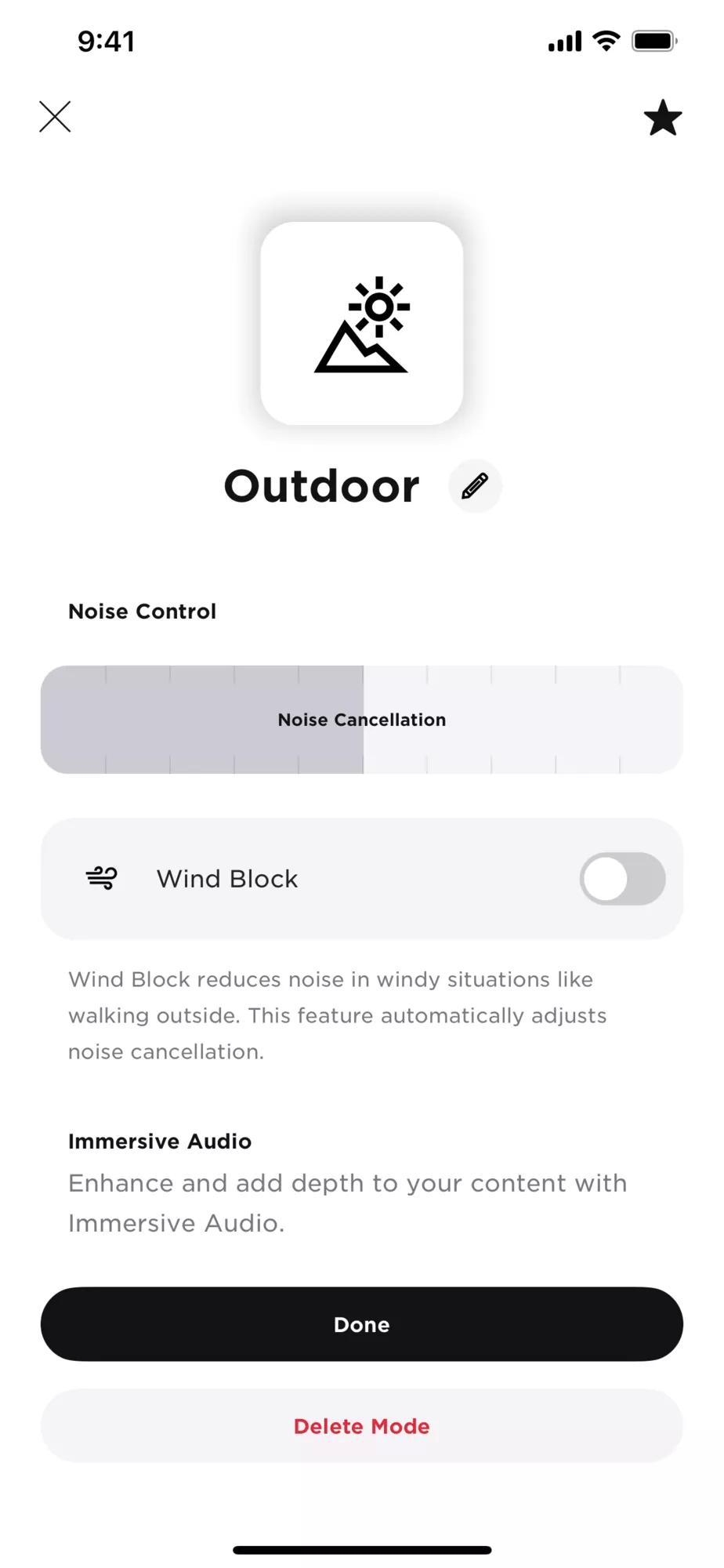
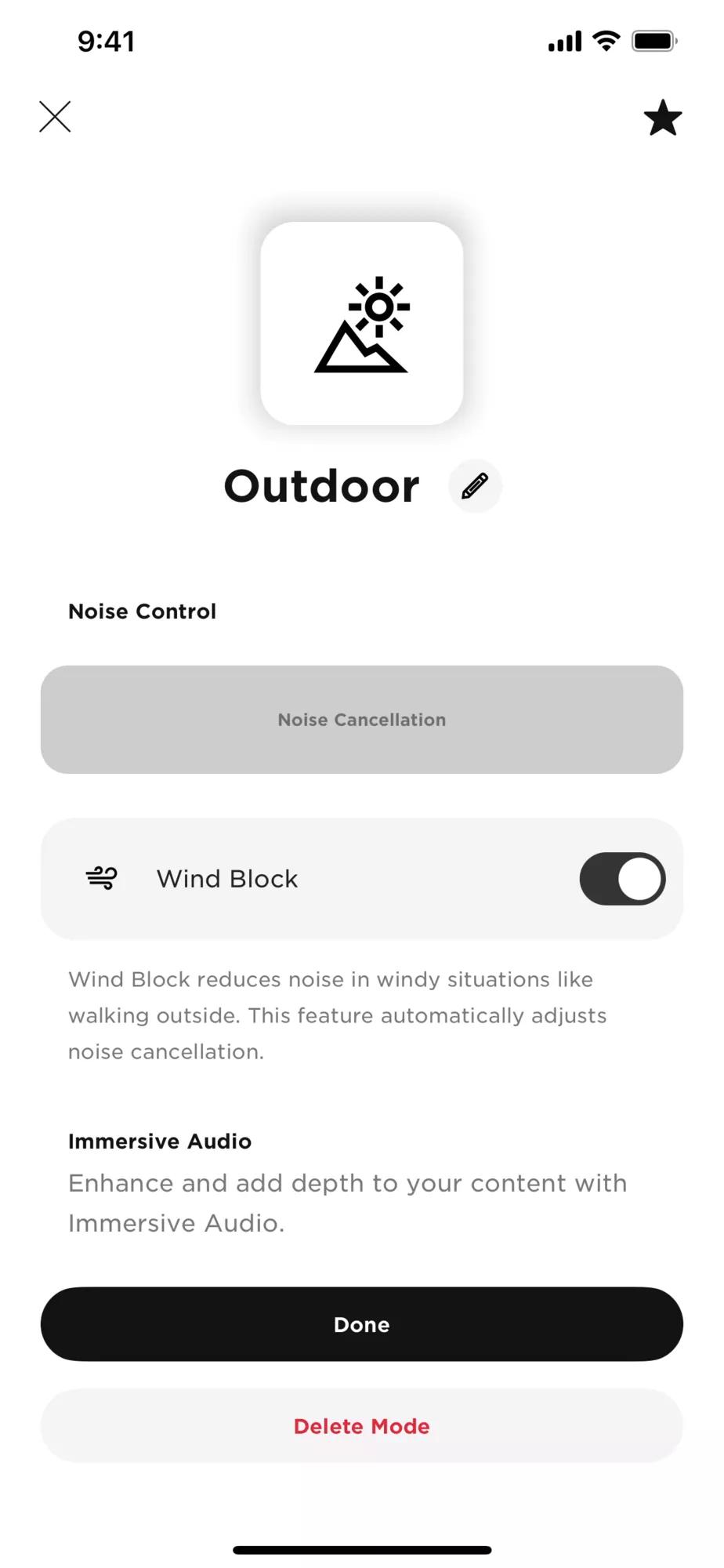
| Custom | Custom noise control (noise cancellation or wind block) and immersive audio settings based on your listening preferences and environment. NOTE: You can create up to seven custom modes using the Bose app. To access this option, tap Modes on the main screen. |
NOTE: By default, the headphones power on in Quiet mode. To set the headphones to power on with the last mode used, use the Bose app. You can access this option from the Settings menu
Aware mode with ActiveSense
The dynamic noise cancellation of Aware mode with ActiveSense technology allows you to hear your surroundings while reducing unwanted noise.Aware mode with ActiveSense allows the headphones to automatically turn on noise cancellation when sudden or loud noises occur near you, so you can maintain awareness without intermittent noise interrupting your audio. Once the noise stops, noise cancellation automatically turns off again. To enable ActiveSense, use the Bose app.
To access this option, on the main screen, tap Modes > Aware > ...
Changing Modes
To access a mode on the headphones, it must be set as a favorite in the Bose app. To set your favorite modes, tap "Modes" on the main screen.- To cycle through modes, press and hold the Multi-function button. A voice prompt announces each mode in a loop.
- When you hear the name of your preferred mode, release the Multi-function button. You can also change the mode using the Bose app. To access this option, tap "Modes" on the main screen.
Add or remove modes from the headphones
To access modes on the headphones, they must be set as favorites in the Bose app. By default, Quiet, Aware, and Immersion modes are set as favorites. To add or remove modes from the headphones, tap "Modes" on the main screen and customize which modes are set as your favorites.
About voice prompts and listening modes
When switching modes, the voice prompts are played in the current selected mode.Example: When in Quiet mode, if you press and hold the multi-function button to cycle to Immersion mode, you will not hear the voice prompt in Immersive audio, instead you will hear them in Quiet mode (Full noise cancellation with Bose-optimized stereo audio).
Using Wind Block
Wind Block reduces noise in windy situations like walking outside. When engaging this feature, it automatically adjusts noise cancelling.It is only available in Custom Modes.
Was this article helpful?
Thank you for your feedback!