


Back to article
3348
Using the buttons and touch controls
Your headphones include both touch control and physical buttons. Use touch control by swiping or tapping the touch surface of the headphones. With touch control, you can play or pause audio, skip forward or backwards, change the volume, and perform basic call functions. Buttons have default functionality such as noise cancellation levels and voice assistant, but can also be customized in the Bose app.
Using the buttons and touch controls | Bose QuietComfort Ultra Headphones (2nd Gen)
Headphone controls
The Multi-function button controls media playback. The volume strip controls the volume.
The Multi-function button controls phone calls. There are four microphones for phone calls on the headphones — two on the left earcup and two on the right earcup.
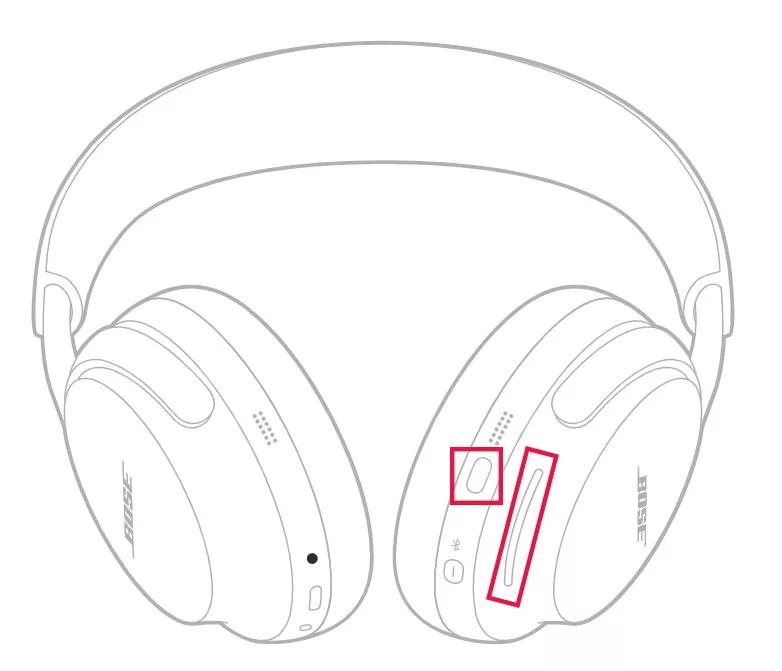
Media playback and volume
| Function | Headphones operation |
|---|---|
| Play or pause | Press the Multi-function button |
| Skip forward | Double-press the Multi-function button |
| Skip backward | Triple-press the Multi-function button |
| Volume up | Swipe up on the volume strip |
| Volume down | Swipe down on the volume strip |
Phone calls
The Multi-function button controls phone calls. There are four microphones for phone calls on the headphones — two on the left earcup and two on the right earcup.| Function | Headphones operation |
|---|---|
| Answer or end a call | Press the Multi-function button |
| End/Decline an incoming call | Double-press the Multi-function button |
| Answer second call and place the current call on hold | While on a call and a second incoming call is ringing, press the Multi-function button |
| Decline a second call and stay on the current call | While on a call and a second incoming call is ringing, double-press the Multi-function button |
Resetting your product | Bose QuietComfort Ultra Headphones (2nd Gen)
Reboot your headphones.
This reset will not erase your product settings.
- If the USB charging cable or audio cable is connected to your headphones, disconnect it.
- Connect a USB charging cable and charger to a power outlet. You can also connect the USB cable to a USB port on a computer that is powered on.
Note: Do not connect your headphones to the USB cable yet. - On your headphones, press and hold the Power/Bluetooth® button.
- While continuing to hold the button, connect the USB cable to the right earcup. The Power light on your headphones will quickly blink twice.
- Once connected, wait two seconds and then release the Power/Bluetooth button.
Tip: If your headphones don't respond after this, reset them a second time.
Was this article helpful?
Thank you for your feedback!